Your screen. Your setup.

Nova Star TV on your devices

Big-screen nights or a quick watch on your phone. Find your device below, choose a compatible player, and bring your Nova Star TV login with you.

One connection is one active stream. Choose 1–5 simultaneous connections with your plan.

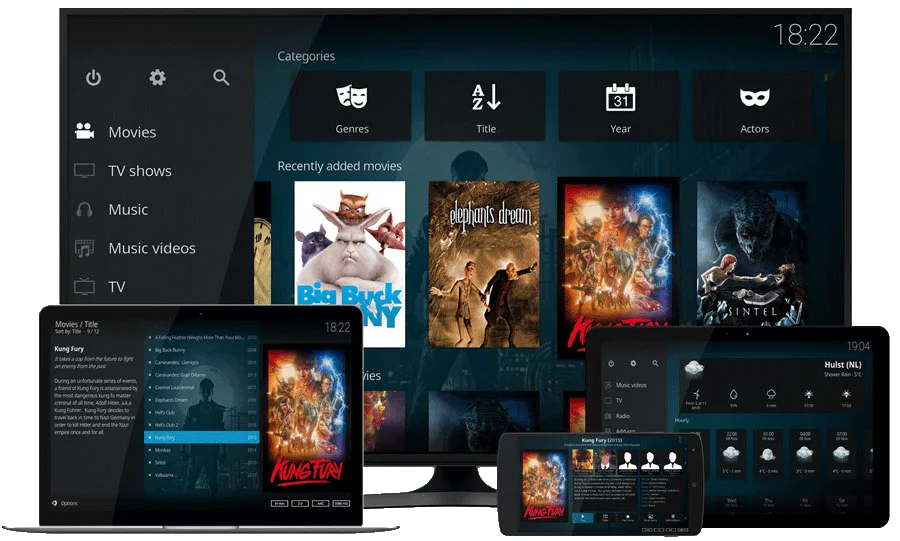
TV, laptop, tablet and phone for choosing your viewing setupA setup for every kind of screen

Start with what you own

Four ways to get watching.

The app store changes. The essentials stay the same: a compatible player, a steady connection and your account details.

01

The living-room favorite

Smart TVs

Samsung, LG, Google TV and Android TV use different stores. Start with your exact TV model and the apps it offers in your country.

  1. Open your TV’s official app store.
  2. Check the player’s login formats and any app fee.
  3. Add your account and test a live channel.

A player may accept Xtream Codes, M3U or its own device-key setup. Check before ordering.

Read the Smart TV guide
02

Make your TV more flexible

Streaming sticks & boxes

Use the official store on your Fire TV, Google TV, Android TV or Apple TV. App choices depend on the device and its software.

  1. Connect the device to HDMI and your network.
  2. Find a compatible player in its own app store.
  3. Enter the login format your player requests.

Roku, MAG and portal-based boxes need a support check first. Do not assume an Android app works on every Fire TV.

Check my stick or box
03

Keep it close

Phones & tablets

Use the App Store on iPhone or iPad, or Google Play on Android. A touch keyboard can make your first login easier.

  1. Find a player for your phone or tablet.
  2. Check that it accepts your supplied login.
  3. Test on the network you normally use.

Casting and AirPlay depend on the app and receiving device. They are not included automatically.

Understand player apps
04

A bigger view at your desk

Computers

Windows and Mac users can choose a compatible IPTV player or a desktop media player that supports network playlists.

  1. Install from the official store or developer.
  2. Use the supported account or playlist option.
  3. Check live playback and guide display.

An M3U-capable media player may play streams without a full electronic TV guide. Chromebook and Linux options vary.

See the login checklist

Same account. Different fields.

Know what goes where.

Your account details come from IPTV Services after payment is confirmed. Choose the login type your player supports and copy the details exactly.

Open the illustrated login guide

Before you settle in

Give your first stream a proper test.

Check the actual device, app and connection you plan to use. A short test at your usual viewing time tells you more than a list of compatibility badges.

Request a 24-hour trial
  1. Play live TV. Try a few channels, then an on-demand title.
  2. Open the EPG. Check the player’s time zone if guide times look shifted. Listings vary by feed.
  3. Try your screens together. If selecting more than one connection, test the number you need at the same time.
Platform sources & compatibility notes

Platform instructions reviewed October 16, 2026. These are general setup notes, not hands-on tests of every model or a promise that a particular player is available. App stores differ by country, device and software version; this applies in the US, UK and Canada.

Nova Star TV supplies subscription information; independent developers supply player apps. Player fees are separate. HD, UHD and 4K depend on the source and your setup; EPG and catch-up depend on the feed and compatible player.

A little help from a human

Not sure about your model?

Send the brand, exact model, player name and country. Support can check the right route before you choose a plan. Keep passwords and playlist links private.
Ask about my device
Opens live chat from IPTV Services. Chat loads automatically on every page.